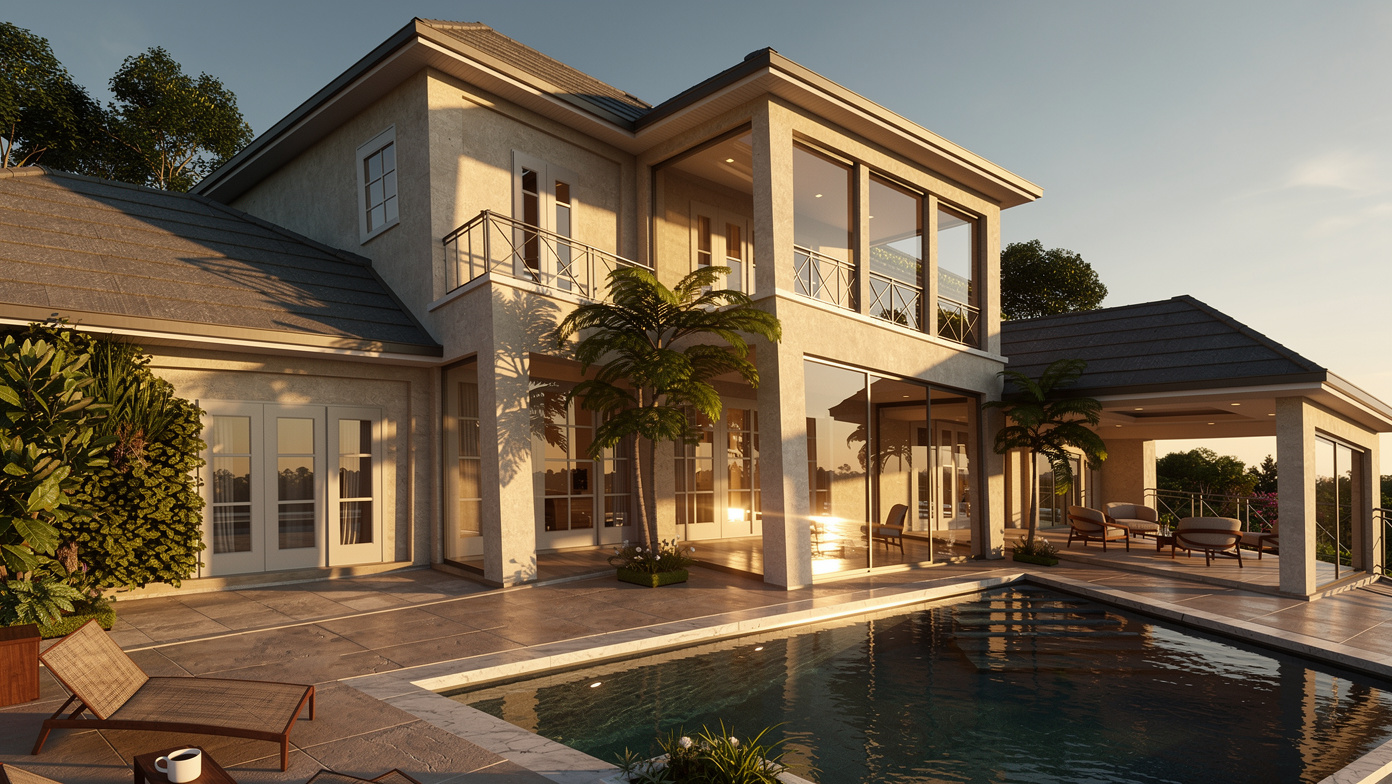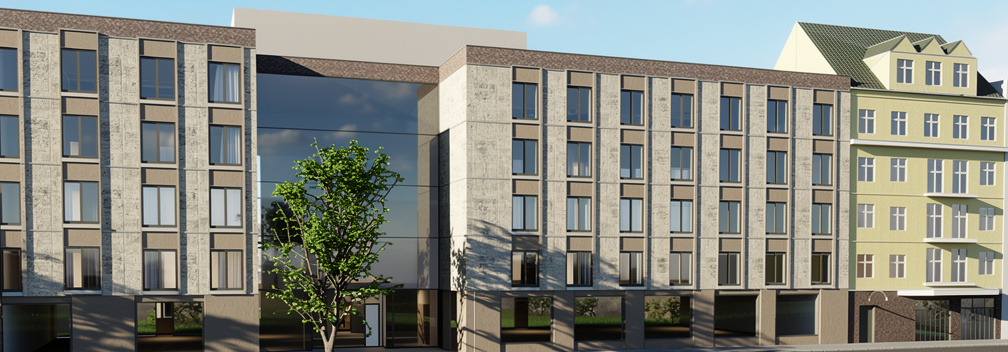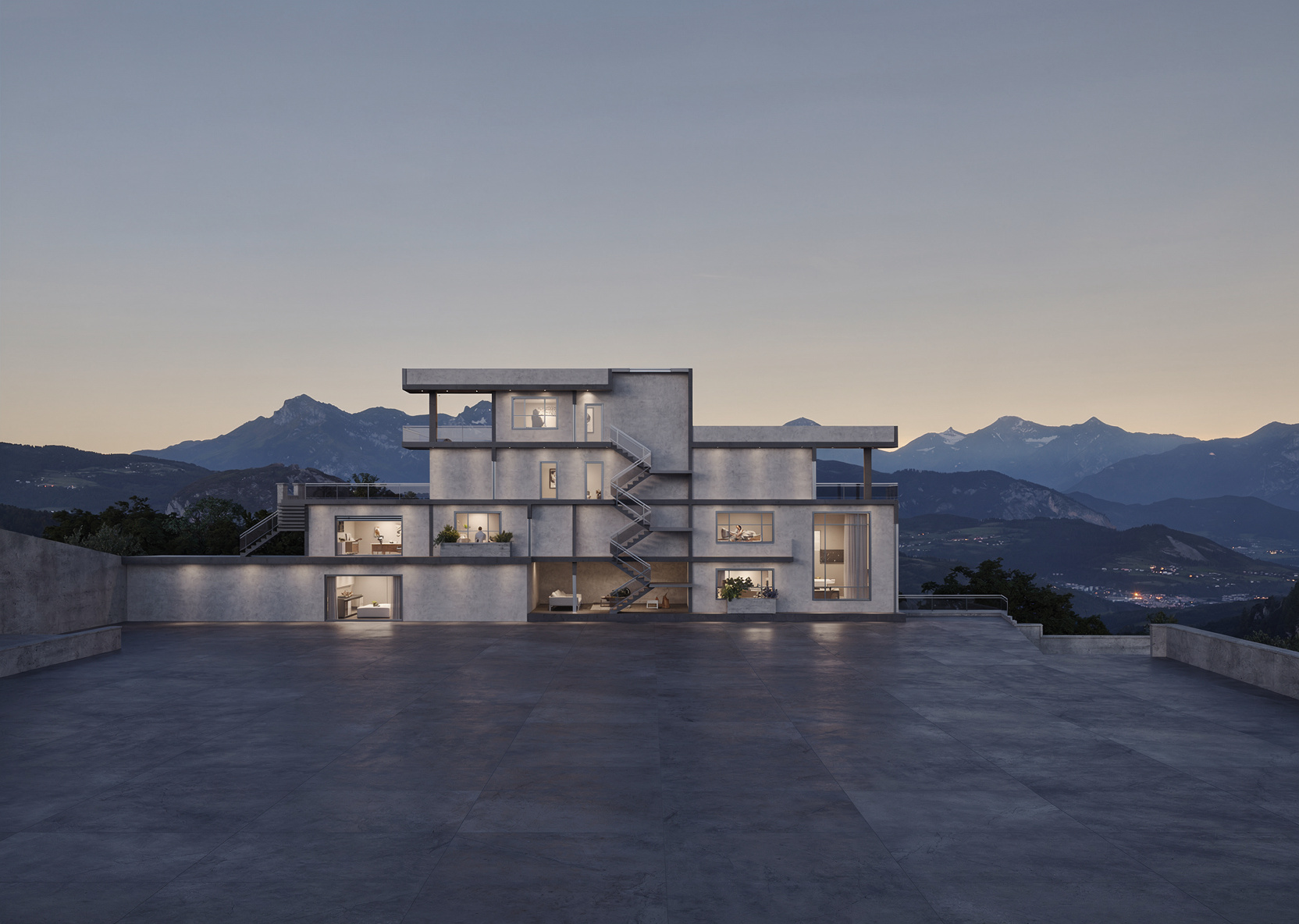
Welcome to EazyRender! Whether you're an architect, interior designer, student, or just someone who wants to visualize a space - you're in the right place. This guide will get you from zero to your first photorealistic render in about 2 minutes.
What is EazyRender?
EazyRender is an AI-powered tool that transforms images of 3D models, floor plans, sketches, or screenshots into photorealistic architectural renders. No rendering software needed, no powerful computer required - it all runs in the cloud.
You can use it in two main ways:
- Image Upload (Render Mode) - Upload a screenshot, floor plan, or any image of a space. The AI transforms it into a photorealistic visualization while preserving the layout and geometry.
- 3D Model Upload - Upload a GLB, GLTF, OBJ, FBX, or DAE file from SketchUp, Blender, or other 3D software. Navigate the 3D viewer to find the perfect camera angle, then render.
Step 1: Create Your Account
Go to app.eazyrender.com
Click "Get Started" or "Sign In" and continue with Google. The native iOS app also supports Apple and email sign-in.
Try a preview or choose credits
Eligible signed-in accounts can create one high-quality watermarked preview without a card or wallet credit. Clean renders use credits; one-time paid packs begin at $2 for 2 credits, and paid credits never expire.
You're ready to render!
That's it. No software to install, no plugins to configure. Everything works right in your browser.
Step 2: Your First Render
Option A: Upload an Image
This is the fastest way to get started. You can upload:
- A screenshot from SketchUp, Blender, Revit, Archicad, or any 3D software
- A 2D floor plan (from AutoCAD, hand-drawn, or any source)
- A photo of an existing space you want to redesign
- Any architectural image you want to enhance
Best formats
Option B: Upload a 3D Model
If you have a GLB, GLTF, OBJ, FBX, or DAE file, you can upload it directly. EazyRender has a built-in 3D viewer where you can:
- Orbit, pan, and zoom to find the perfect angle
- Save camera positions for multiple renders
- Render from any angle without re-uploading
Step 3: Edit Your Renders with Natural Language
Once you upload your image or set up your camera angle, just hit Render. The AI handles everything automatically - no prompts or style descriptions needed. You'll get a photorealistic result often in roughly 30 seconds, though queue and provider load can extend the wait.
After your render is ready, here's where it gets powerful: use the Edit feature to refine the result using natural language. You can write in any language - English, Turkish, Spanish, Arabic, Japanese - the AI understands them all.
Examples of what you can say in the editor:
Add furniture:
"Add a blue sofa in the living room"
Change materials:
"Change the floor to marble" or "Make the walls white"
Adjust the mood:
"Make it warmer with sunset lighting" or "Add indoor plants"
Iterate freely
Step 4: Download & Share
Once your render is ready, you can download it in high resolution. Use it for:
- Client presentations
- Portfolio pieces
- Social media posts
- Design competition entries
- Marketing materials
What's Next?
Now that you've got the basics, check out these guides to level up:
- What to Upload - Learn which types of images work best
- Tips for Better Renders - Get the most out of every credit