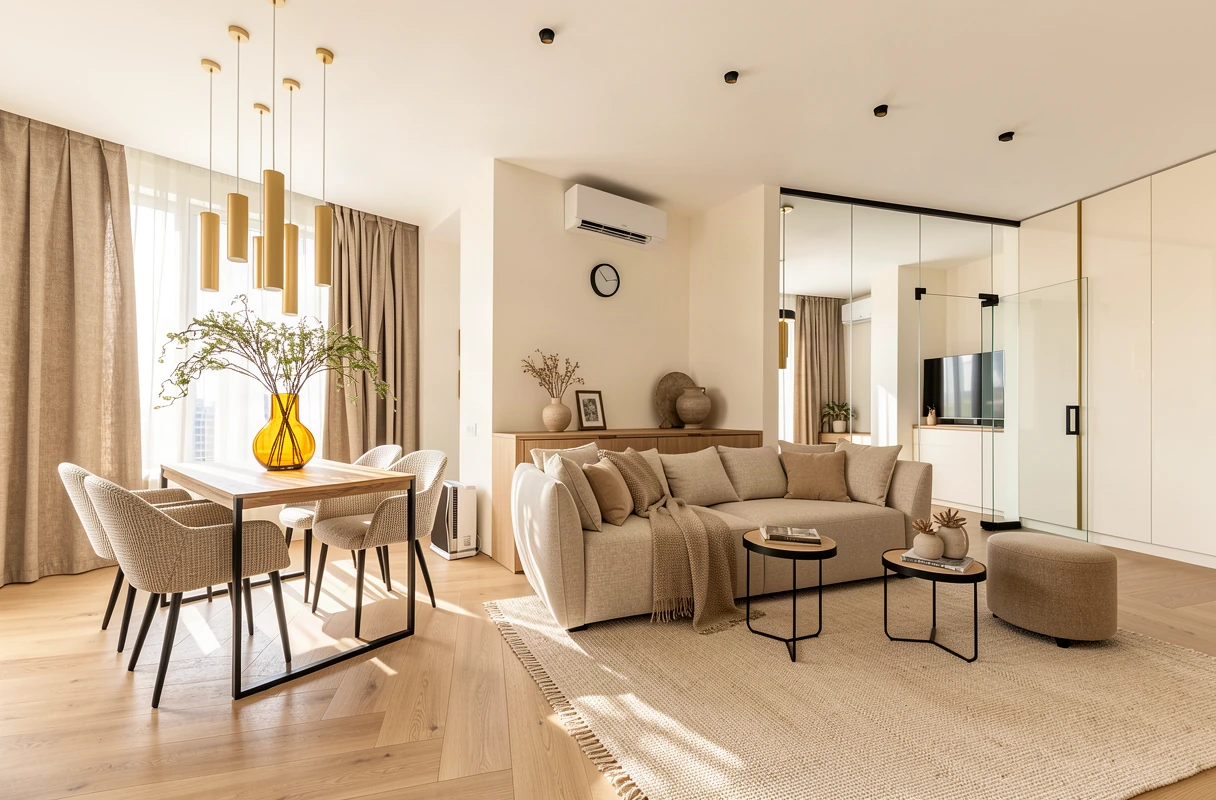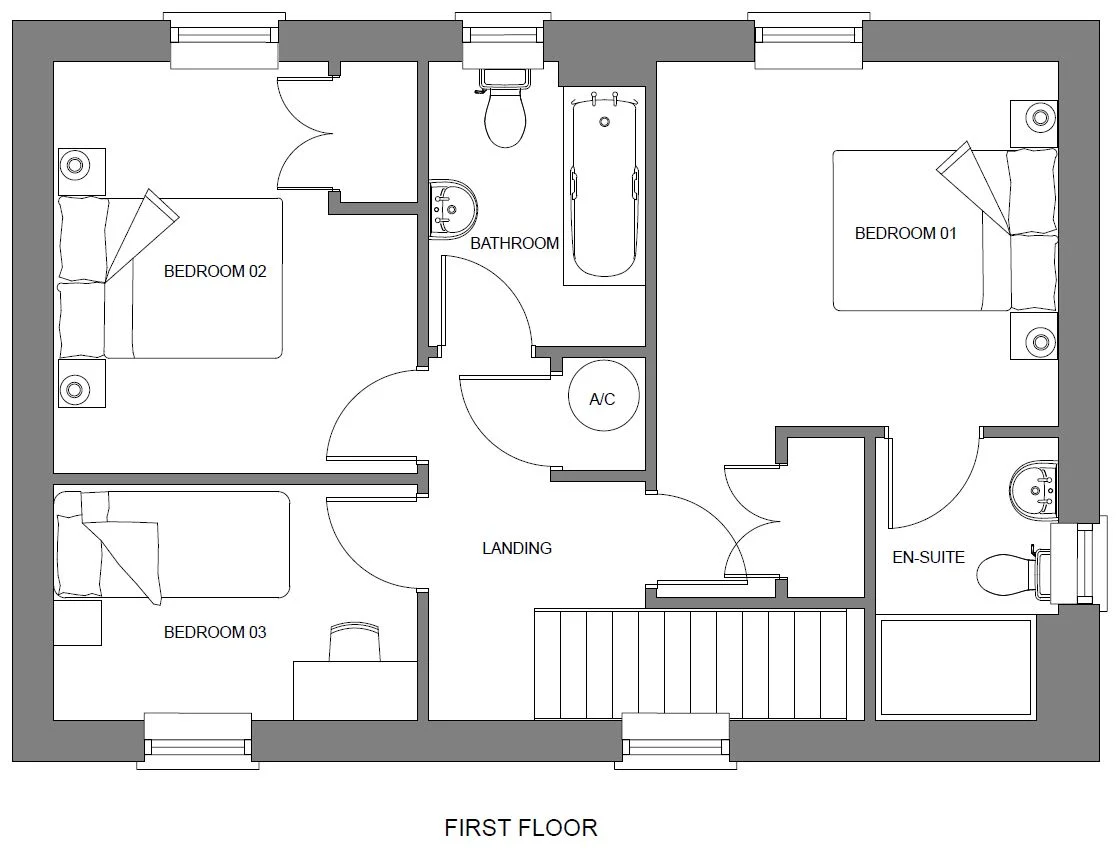
One image. One clear intention.
For Render, start with a model screenshot, exported view, sketch, plan or section that clearly shows your design. For Redesign, use a photo or rendered view of the space you want to reinterpret.
Choose a single composition. A collage of unrelated angles makes it harder to tell which geometry should guide the result. Crop interface panels and keep the building or room large enough to read.
Before you upload
- Use a clear, adequately sized image. Heavy blur, compression and tiny distant details leave less information to work with.
- Keep walls, floors, openings and important objects visible. Avoid clipping the edge of the space you want to preserve.
- For plans and sections, use clean linework with a clear hierarchy. Keep measured drawings separately; a generated visualization is not a dimensionally verified drawing.
- For photographs, start with a balanced exposure. Very dark corners and blown-out windows hide information.
Images and model files
JPEG, PNG and WebP images are useful starting formats. If you have a 3D model, the browser viewer supports GLB, GLTF, OBJ, FBX and DAE. Open it, choose a camera view, then capture the image you want to render.
Native SketchUp SKP files are not supported directly. Take a screenshot or export a view, or export your model to a supported format. EazyRender produces images; it does not modify your original CAD or BIM geometry.
Source, material or inspiration?
| Image | What it guides |
|---|---|
| Starting image | The space, composition and camera you are working from. |
| Material sample | The finish assigned to a particular layer in Render. Use a clear texture or material reference. |
| Inspiration photo | The colors, materials and mood of a Redesign. Your starting image still guides the layout. |