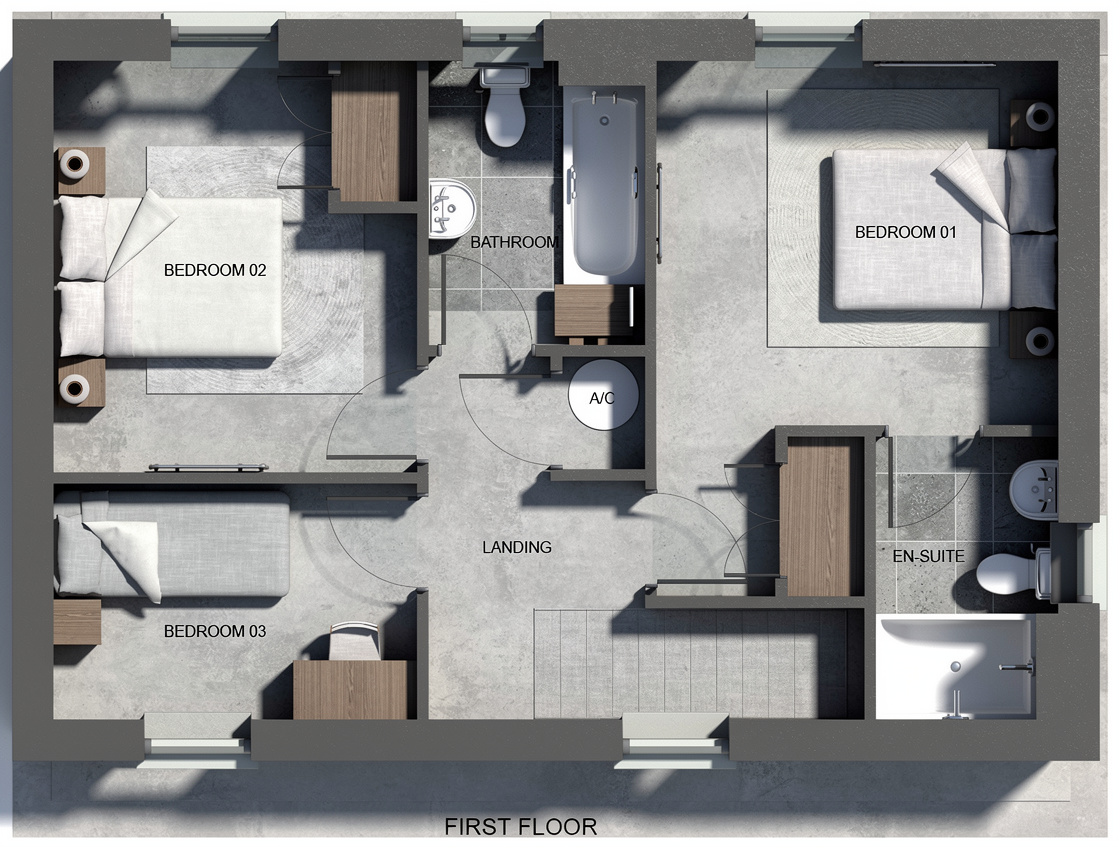
Try it
$22 credits
A small project. A first impression.
Get 2 creditsFor spaces not yet seen
Turn your SketchUp screenshot
into a realistic render.
One watermarked preview per eligible signed-in account.
One space. Many possibilities.
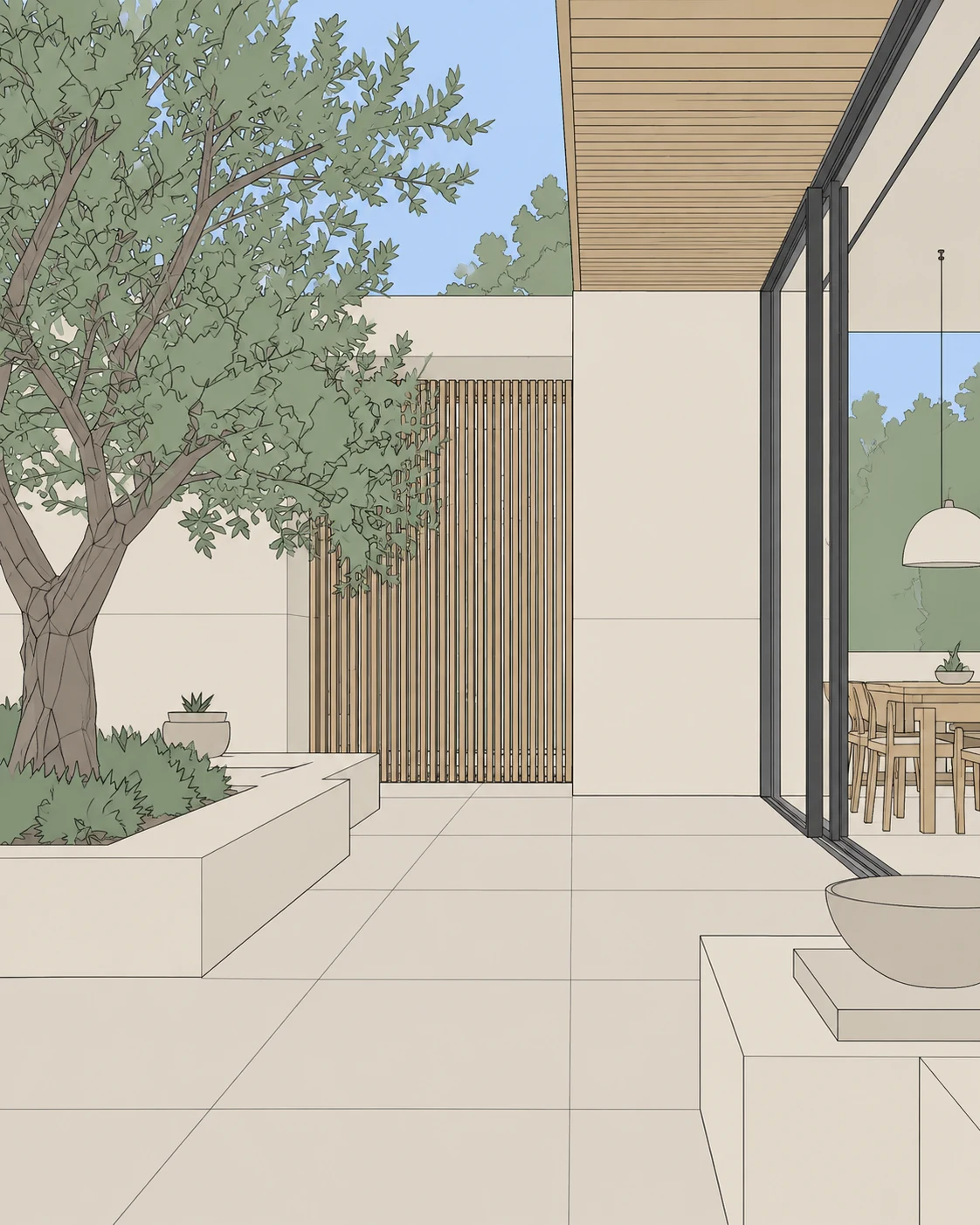

01 / Render / Materials
Choose a surface. Find its finish.
Pick a sample to see the wall change.
02 / Render / Edit with chat
You can see the next version in your head.
Tell EazyRender what to change.
“Take it into the evening.
Keep the interior warm.”
An example edit. Your words guide your next render.
03 / Redesign / A new direction
Choose a style or bring your inspiration.
See what else your space could become.
Natural textures. Softer neutrals.
Explore Redesign

Field notes / The workflow
From the first upload to the final detail.
A little guidance goes a long way.
The EazyRender walkthroughStart with a clear screenshot from your model.
Render your design, or explore a new style with Redesign.
Try a finish. Describe a change. Compare your versions.
A little less commitment
Start with a free watermarked preview.
Buy credits when you need more.
$22 credits
A small project. A first impression.
Get 2 credits$55 credits
A few views worth exploring.
Get 5 credits$2025 credits
Room to develop your ideas.
Get 25 credits$3550 credits
For the next project. And the next.
Get 50 creditsOne-time payment. Paid credits never expire. Free 4K upscaling for unlocked results.
From the journal
Yes. Export a view or take a clear screenshot of your model, then upload the image. Choose a view with readable geometry and crop away toolbars. You don’t need to upload the 3D model.
You can create one watermarked render preview per eligible signed-in account, without a card or wallet credit. Unlocking the clean image and making further renders or edits uses credits.
Use Render to work on the look of your model view with materials, lighting and chat instructions. Use Redesign to explore a different visual direction for an existing space, guided by a style or an inspiration image.
No. Buy a credit pack when you need it. Paid credits do not expire. 4K upscaling is free for unlocked results.
The next view is yours
One watermarked preview per eligible signed-in account.