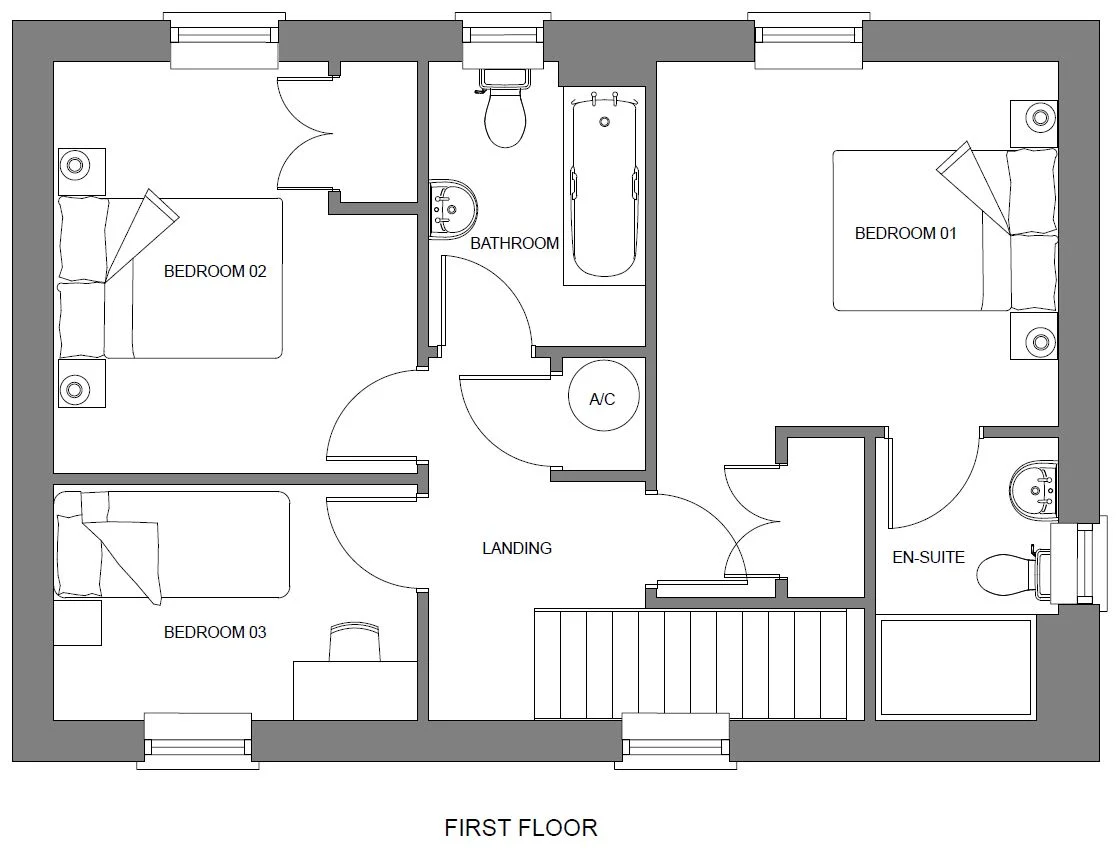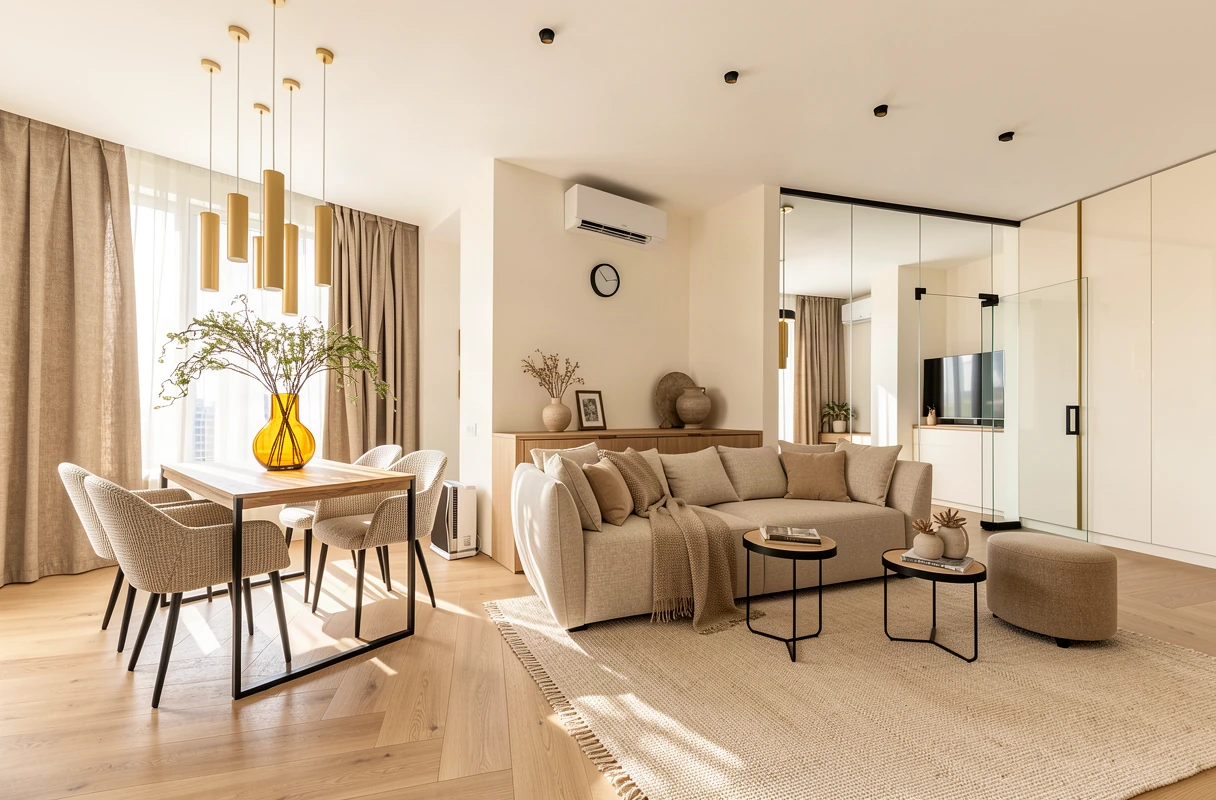
Start with a view you can read
Sign in, open a new scene and upload a clear image. A screenshot from SketchUp is enough: frame the view, hide toolbars and crop away anything outside the design. You can also upload a supported 3D model and capture an angle in the browser.
The image is your starting point. A good angle and visible surfaces are more useful than a long list of instructions.
Choose the job: Render or Redesign
- Render: develop your model view into a realistic image. Work with its materials, lighting and the details you want to refine.
- Redesign: explore a different look for an existing space. Choose interior, exterior or garden, then a style or your own inspiration image.
Prepare the next version
- In Render, check the suggested layers. Open a surface and choose a library finish, upload a material sample or describe one. Keep the original where no change is needed.
- Choose the lighting, or keep the scene’s existing light. For a written change, open Edit with chat and send your instruction.
- In Redesign, choose a style or upload an inspiration image. Check the starting image and describe any details you want to guide.
Generate, compare, refine
Review your choices and use the explicit generation button. The button shows the cost. Wait for the result, then compare the source and new version. Check edges, openings, furniture and material transitions before using the image in a presentation.
Your original remains saved. Change the brief before creating another Render version; in Redesign, check whether the selected source is the original or a saved result. Download the result you want to keep.
Video walkthrough
See the first upload and comparison in the walkthrough.
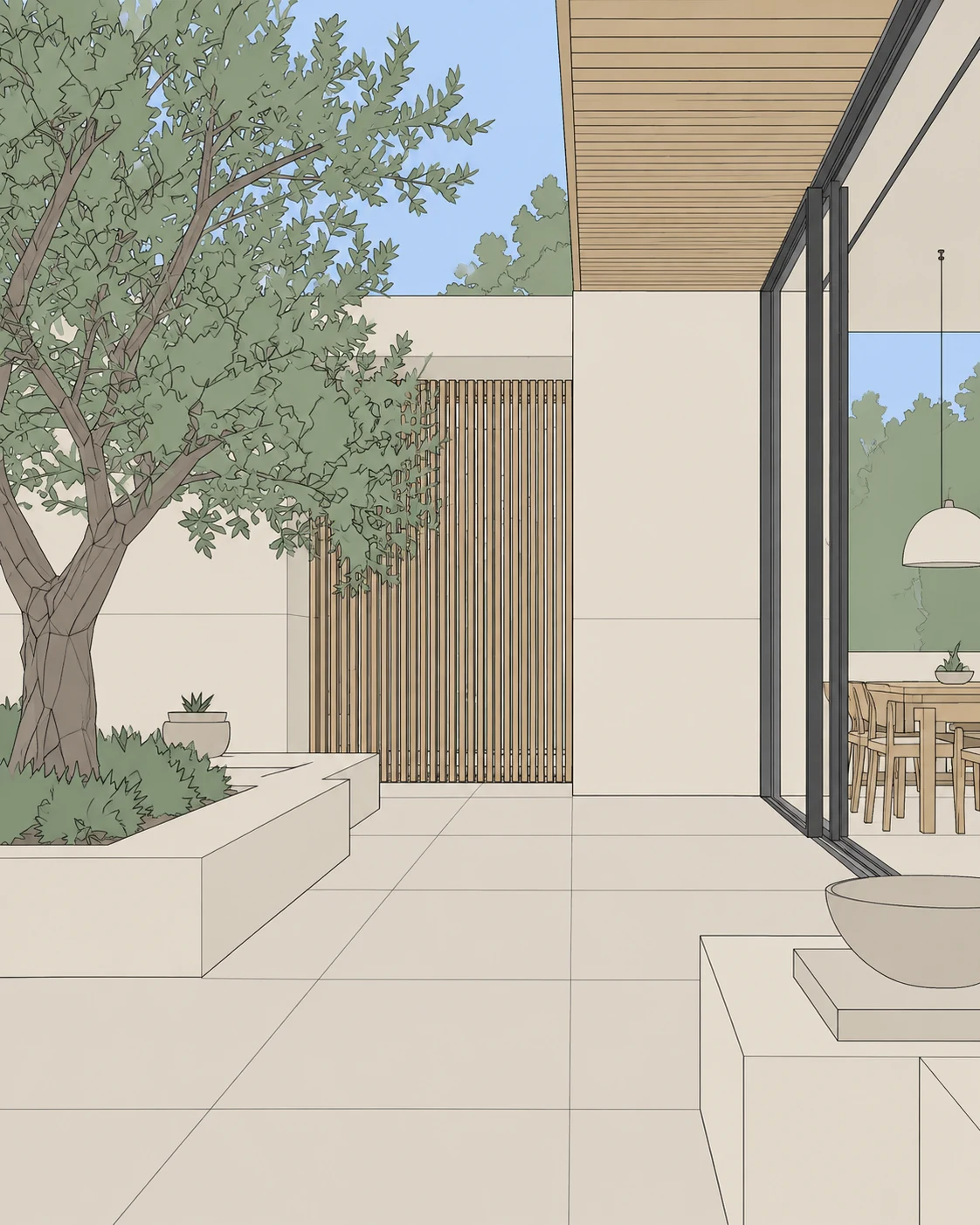
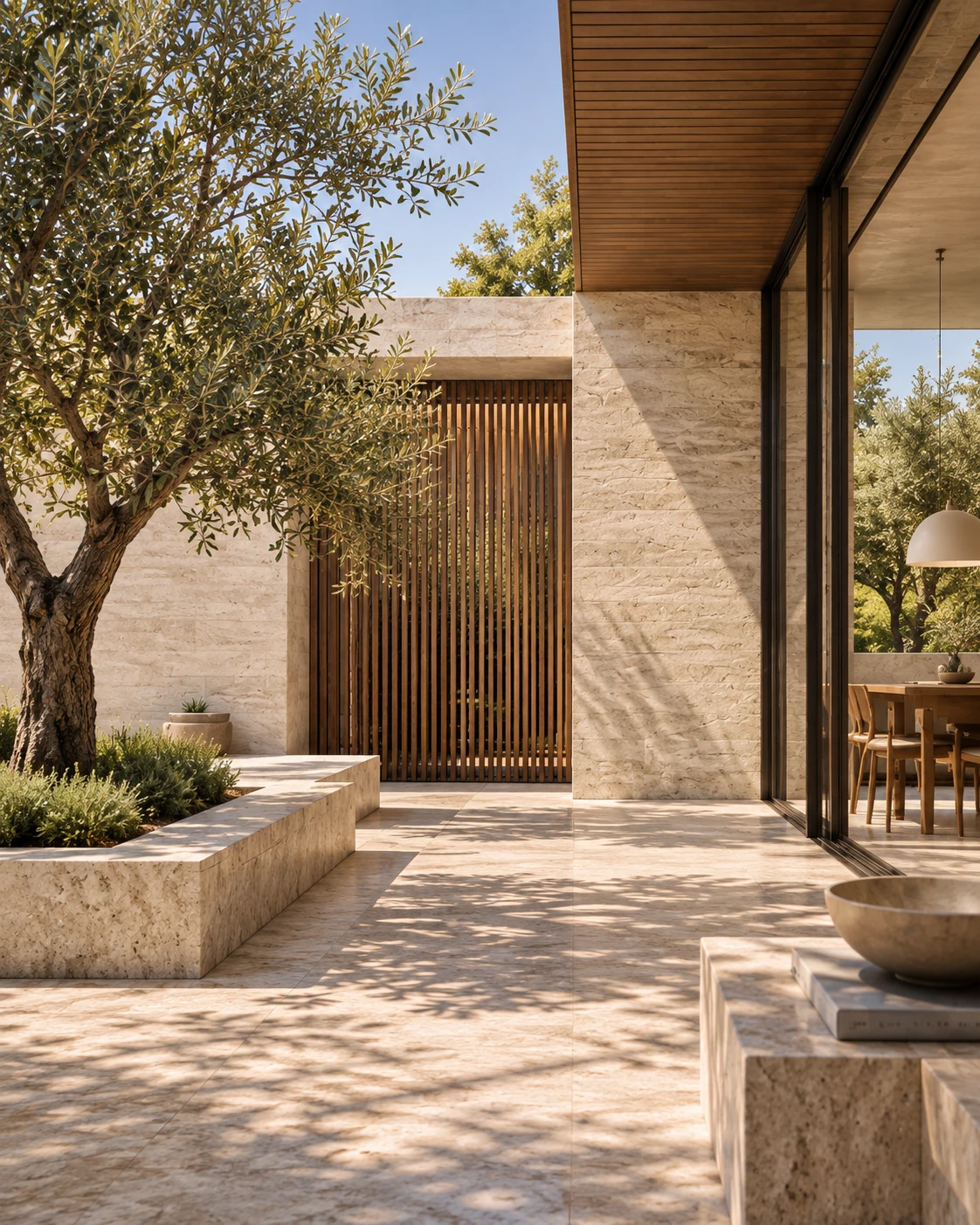 The EazyRender walkthrough