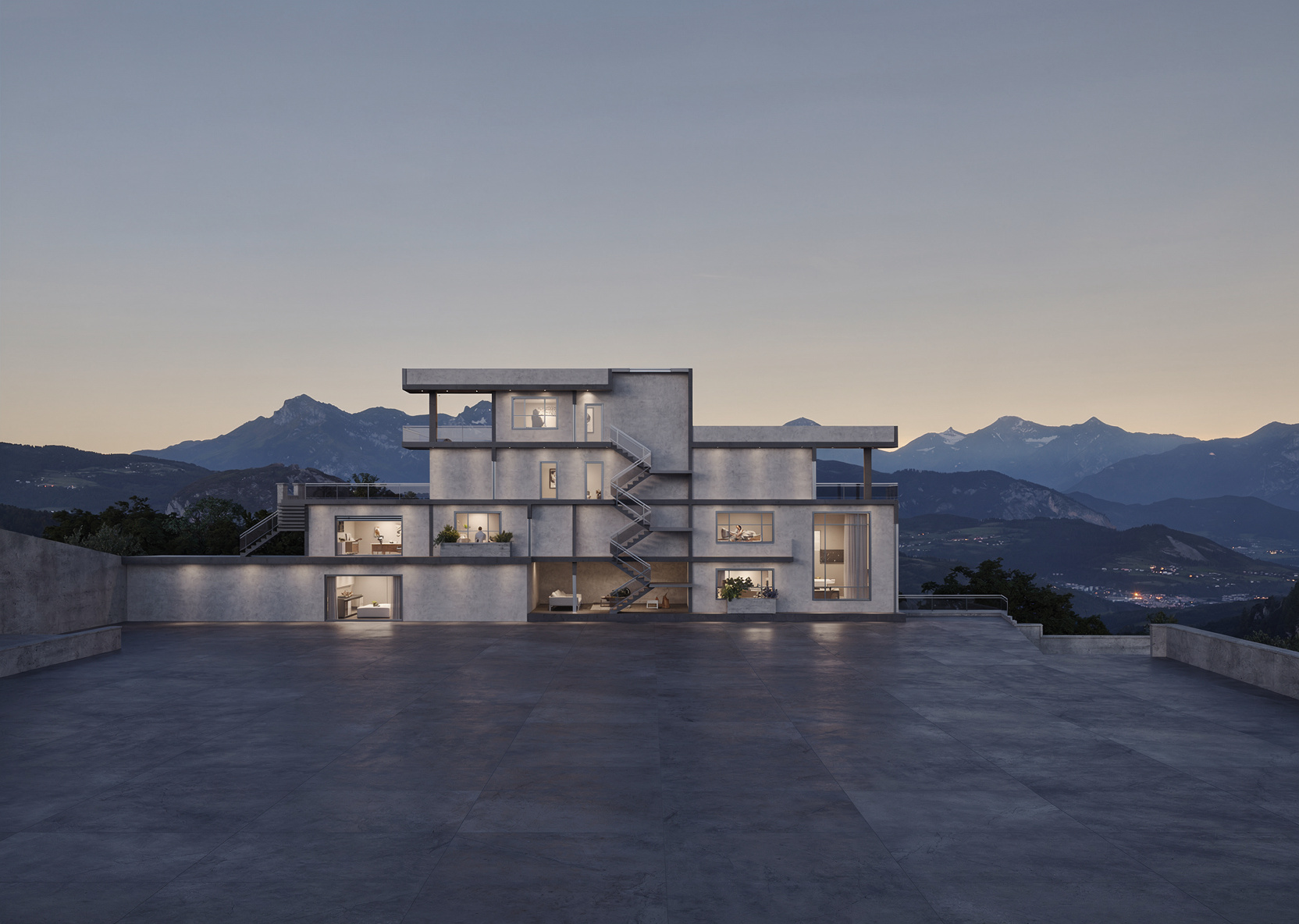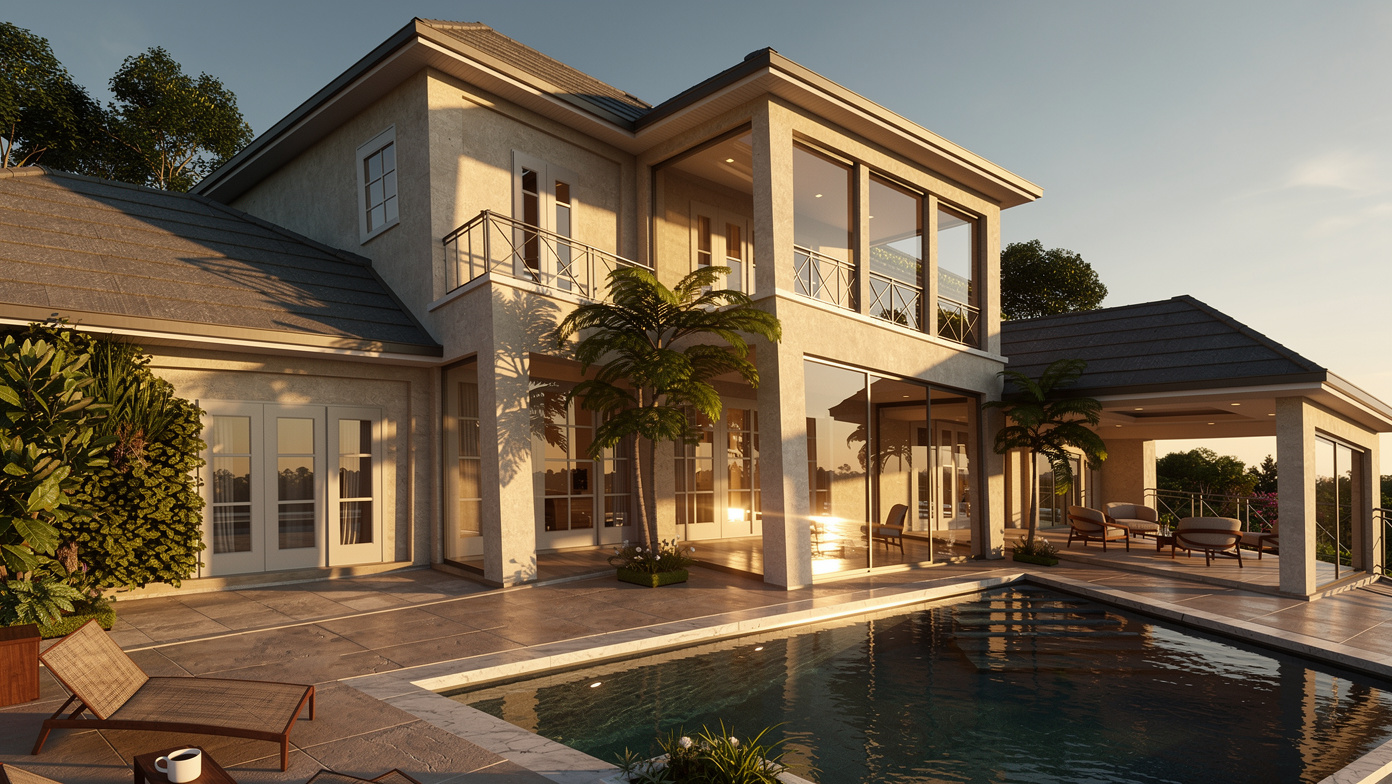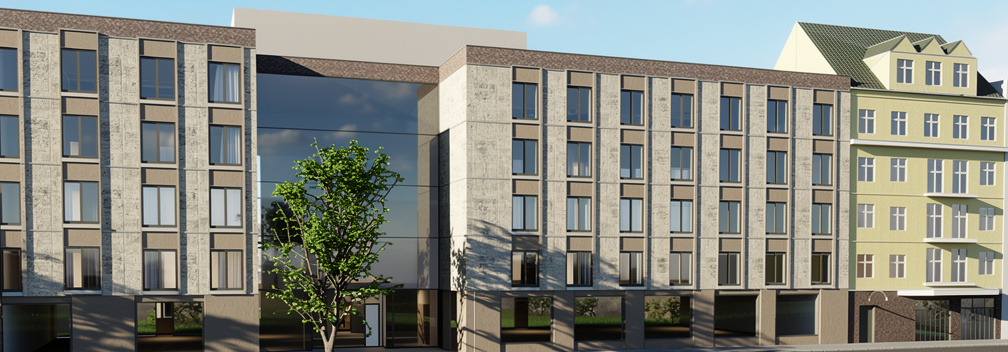
Getting great results from EazyRender is easy, but getting amazing results takes a few tricks. Here are 5 tips our most successful users swear by.
Tip 1: Clean Your Input Image
The #1 factor in render quality is the input image. Before uploading:
- Remove UI clutter - Crop out toolbars, menus, and panels from your screenshot
- Hide annotations - Turn off dimensions, grid lines, and text labels in your 3D software
- Use a neutral face style - Monochrome or white faces work best (colored textures in the input can confuse the AI)
- Maximize resolution - Full-screen your viewport before screenshotting
Quick shortcut
Tip 2: Be Specific in Your Prompts
The difference between a good and great render often comes down to the prompt. Compare these:
❌ Vague: "Make it look nice"
✅ Specific: "Modern minimalist interior, white oak floors, matte white walls, brass light fixtures, large monstera plant in corner, warm afternoon sunlight streaming through floor-to-ceiling windows, architectural photography style"
Key elements to include in your prompt:
- Style - Modern, Scandinavian, industrial, Japanese, Mediterranean...
- Materials - Oak floors, marble counter, concrete walls, glass...
- Lighting - Warm afternoon, golden hour, overcast, bright morning...
- Atmosphere - Cozy, dramatic, airy, moody, clean...
- Details - Plants, books, artwork, specific furniture styles...
Tip 3: Use the Right Camera Angle
The camera angle of your input dramatically affects the output. Some angles consistently produce better results:
Best Angles ✅
- • Eye-level interior perspectives
- • 3/4 view of a room (showing 2 walls + floor)
- • Straight-on facade views
- • Slightly elevated exterior views
- • Top-down floor plans
Tricky Angles ⚠️
- • Extreme close-ups with little context
- • Very wide fisheye distortion
- • Looking straight up at ceilings
- • Very dark/underexposed images
Tip 4: Iterate with AI Edits
Don't try to get the perfect render on the first try. Instead, use a quick two-step approach:
- First render: Get the overall style and atmosphere right
- AI Edit: Fine-tune specific elements with natural language commands
Examples of powerful AI edits:
"Change the sofa to navy blue velvet""Add more indoor plants""Make the lighting warmer and more dramatic""Replace the floor with herringbone parquet""Add snow outside the windows"Any language
Tip 5: Generate Multiple Variations
Each render from the same input will be slightly different - and that's a feature, not a bug. Generate 3-5 variations of the same scene and pick the best one. Sometimes the third or fourth render nails it perfectly.
Smart variation strategy:
- Render the same scene with 3 different style prompts
- Show clients 2-3 options (modern vs. classic vs. Scandinavian)
- Try different lighting moods (morning vs. golden hour vs. overcast)
- Compare material options (wood floors vs. concrete vs. marble)
The power move
Quick Summary
- 🧹 Clean your input - no UI, no annotations, high resolution
- ✍️ Write specific prompts - materials, lighting, atmosphere, style
- 📐 Choose good angles - eye-level interiors, 3/4 views, straight facades
- 🔄 Iterate with edits - refine with natural language after the initial render
- 🎰 Generate variations - try multiple styles, pick the best one